
Robot sanding, painting, grinding, sand-blasting, glueing (aera), or 3D measurement processes with (moving) scanners are examples for “line-based-processes” (or spline-based-processes) since the tool is moving during the process with respect to the surface or “across the surface” of the part.
Robotic deburring, welding, sealing, etc. are also line or spline-based processes, but since they are tied to a feature, such as an seam or weld, other simple methods are provided in AUTOMAPPPS and will be described individually.
The video gives and overview how robot tool-paths can be created easily by “clicking on the surface” of the part.
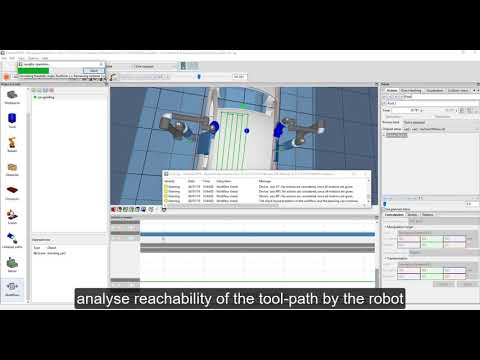
The video is embedded by YouTube and only loaded and played from there when you click on the play button. From then on, the privacy policy of Google applies.
Creating a robot tool path #
There are two methods to create a paths from scratch
- right mouse click in the tree-view. “add” -> “add path”
- click on the path creation button
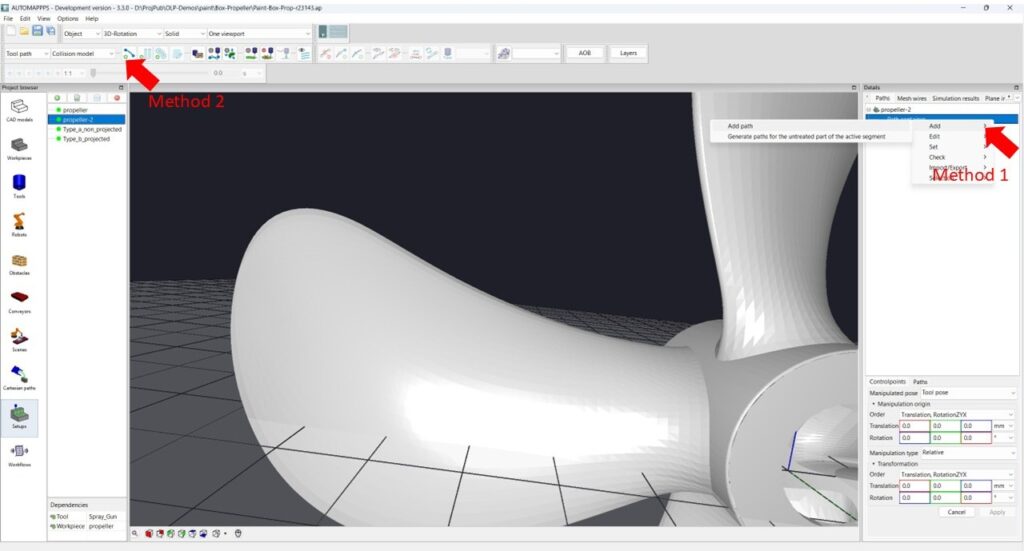
Once the path is created, it is “active”. By clicking on the part in the 3D view with “CTRL”, you do set a new control points of the path. (Remember: without “CTRL” you do not control the application but you modify the view only.
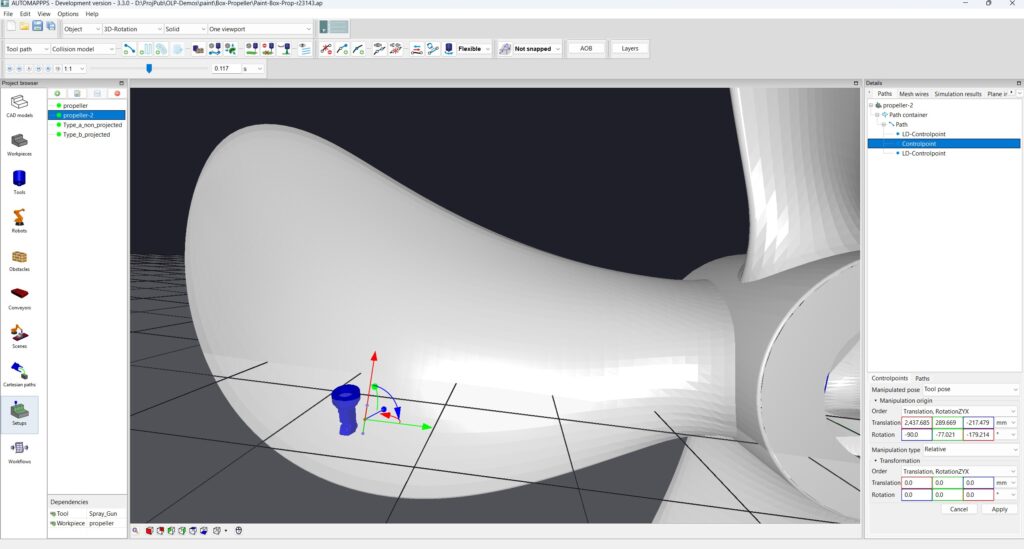
With the first click, the first control-point of the path is set. Since there is no direction, the orientation of the tool is random.
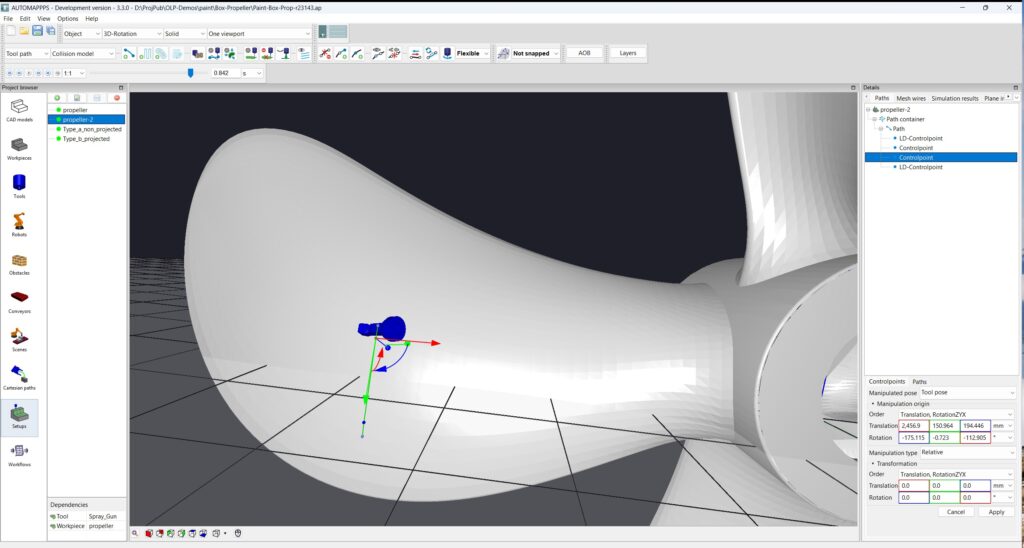
Continue clicking to define more control point. With more points, finally a linear or curved motion is defined and the orientation of the tool is therefore defined as well.
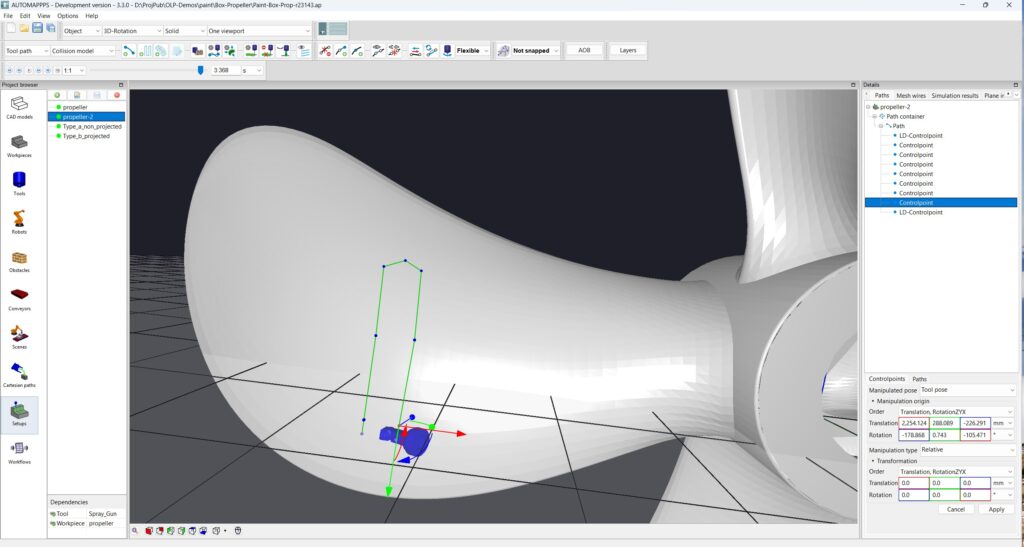
The path is now defiend. You can later extend the tool-path if you select the path again and click (with CTRL). You can modify the path, individual control-point of the path, its position, or its parameters such as the orientation-behaviour of the tool, roundness, surface following properties, tool-speed, and many more properties.
Path parameters #
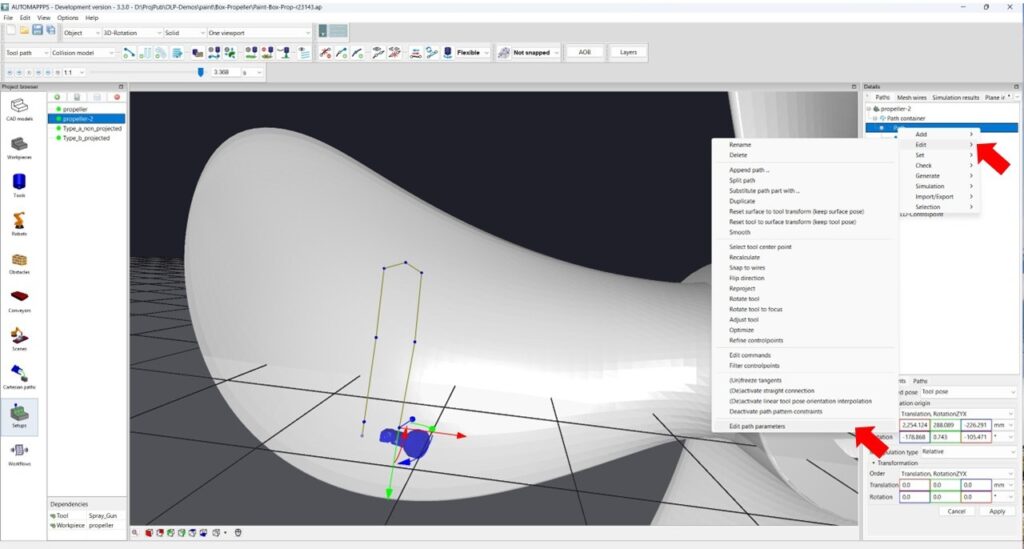
In order to modify the robot tool path parameters, right mouse click the path in the tree-view and follow the mene “edit” -> “edit path parameter”.
Tool orientation #
The tool orientation along the path, i.e. the behaviour / mode of the tool with respect to the surface of the part is defined in the “surface pose orientaion mode”. You can chose among the following mode / path following behaviours.
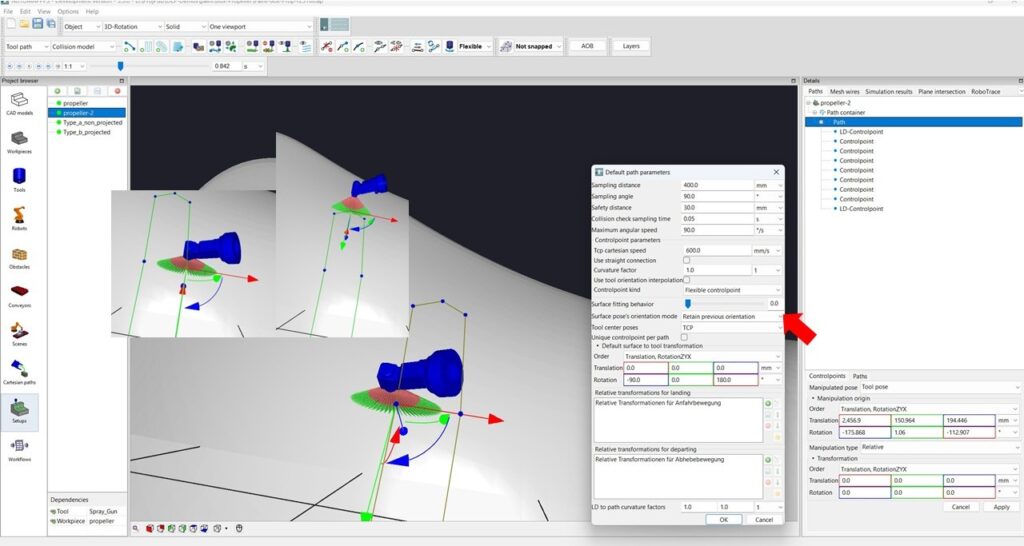
Option Retain previous orientation. The tool keeps or freezes – around Z- axis of the tool its orientation as well as this is possible with arbitrary motion. The tool orientaion in X and Y direction however follow the curved surface. I.e. it maintains e.g. a 90 degree angle to the surface. Please note, while this motion is best suited for the robot and reachabilty, it does work best for rotation invariant processes. A knife for example would break, and the spray gun shown above would need to be turned off ath the transition between updward and downward motion in order to not exceed the coating thickness.
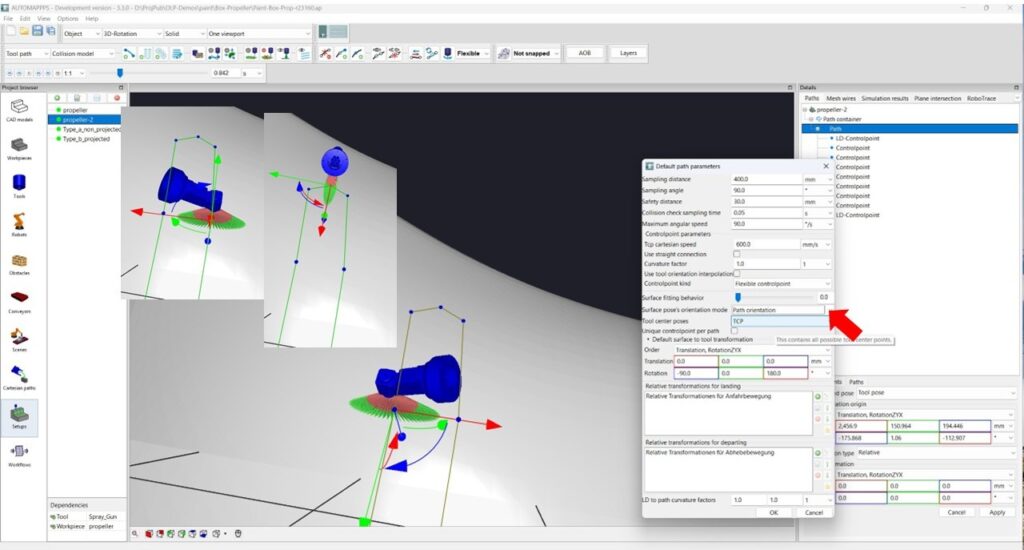
Option Path orientation. The tool keeps its orientation in Z and X and Y direction. It follows the the path along the curved surface. I.e. it maintains e.g. a 90 degree angle to the surface and if the path makes a turn, the tool makes a turn as well. This motion is demanding for the robot, but for several processes, such as belt-sanding, taping and cutting with a knife it is needed.
Landing-Departing / Approach-Depart Motion #
The generated tool path of the robot can be automatically extended by motions to approach to the main path and depart from the main paths
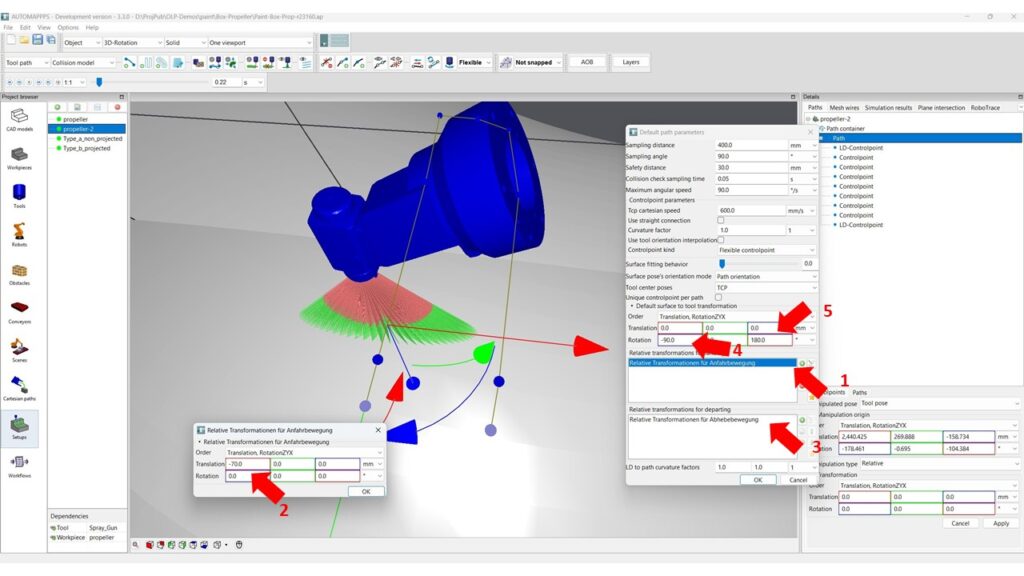
As shown in above image, you can add and modify the default settings for one or more “landing” and “departing points” (shown in the 3D view in gey – while control-points are blue) which are automatically added. This is done in the “transformation for landing” (1) and the “transformation for departing” (3). In the example above the added motion for “landing” (or approaching) is -70 mm in X direction (see 2), which is the direction of the path. Thus, the path is prolonged (starting 70mm before the first control-point). The motivation is that the tool will be precisely on the paths (even with blending) and will have reached desired speed at the first control-point, where e.g. the spray tool is turned on. (Note: you can add several points and turn of the spray earlier to compensate delays of the spray gun). At the departing, the setting in this example is +70mm in X direction. In this way, the path is prolonged by 70mm to achieve the tool is not deviating due to blending of the robot. For the example of grinding, especialls with compliant tools, you would have the Z value of landing and departing e.g. 50mm. In that way, the tool approaches until contact with the surface and starts transitioning to e air motion after been clearly not in contact with the surface anymore.
Please note: the coordinate system you see in the image above is 90 degree rotated to the path orientation, since this is the coordinate system ot the painting tool. It is rotated by 90 degree as you can see in the “surface to tool transform” (4). The 180 degree rotation around X (5) is needed since the TCP of the tool is pointing forward and shall point towards the surface while the normal vector of the surface points away from the surface.
More path parameters #
You can set more default values of the robot tool-paths which are automatically used in robot offline programming.
More information on these paramters is provided in the chapter “Settings and Parameters for Robot Offline Programming” / document: OLP- Path parameters.
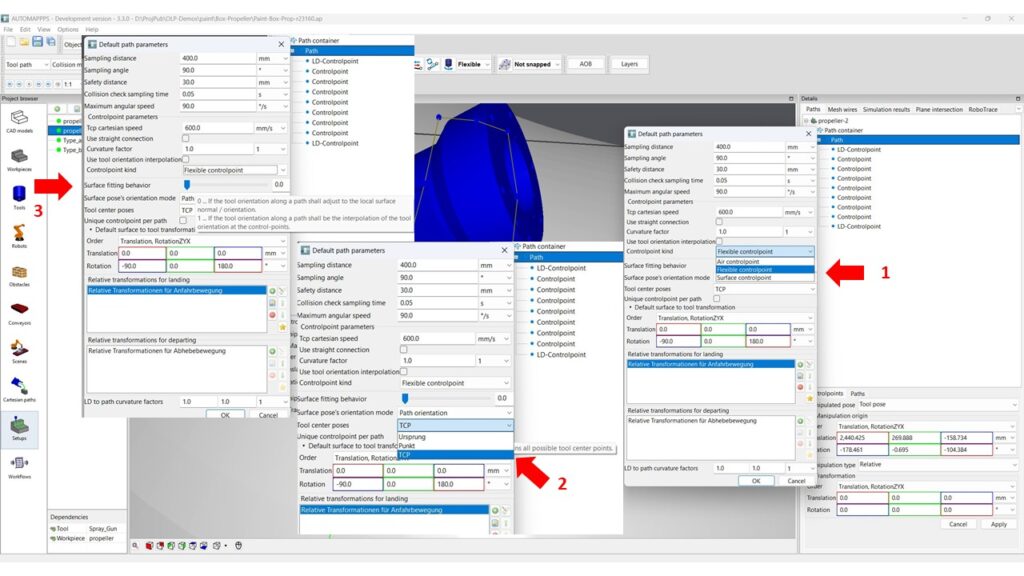
The image above shows 3 important settings:
- With the parameter “controlpoint kind” you can select amoung “air control points” which are used in paths that have less relation to the surface and connect the control-points in straight lines without following the shape or curvature of the part. a “surface control point” samples the path and strictly follows the surface of the path at that sampling-points with defined distance and orientation. If the surface is not smooth, the path is not smooth either. “Flexible controlpoint” is behaving like a surface control point if the sample is above the surface, and behaves as a “air control point” if there is no surface nearby against which the path can align itself.
- With “Tool center poses” you can select the TCP you want to use for the path (e.g. TCP1, TCP2, ..).
- The “surface fitting behavior” can be defined using a smooth transition between aligning the tool orientation to the surface orientation at each user-defined control-point and each automatically inserted (sampled) “way-point” (value 0) versus aligning only at “control-points” and interpolating inbetween.
More choices and settings as shown in the chapter Settings and Parameters – Path Parameters
Creating a “tool-air-path” #
In several cases, the tool path shall not be strongly associated with the surface of the part, e.g. if the surface is cluttered, full of cables etc. which you in this case not want to follow e.g. with an path orthogonal to the surface. In such a case it is possible to define the path point after point by moving the tool without “clicking on the surface”. (Note: the non-confidential example of the regular box is not the most common representative for a cluttered part),
Parameters for “air-paths” #
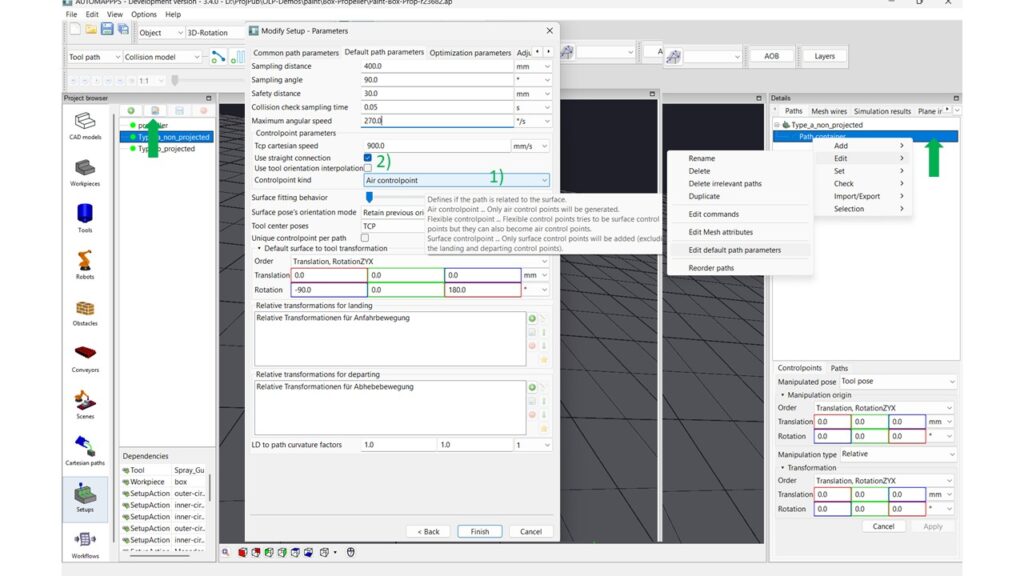
First step is to define the (default) path parameters – either in the setup parameters (left) or via edit the default path parameters of the container that will include the path to be created next (right).
The crucial parameters to be definded are
- 1) the control point type: set to air control-point
- 2) if you want to use straight connections (or splines). We recommend straight connections that result in linear robot motions. You may change to the more curved spline mode later.
Define the start point of the air-path #
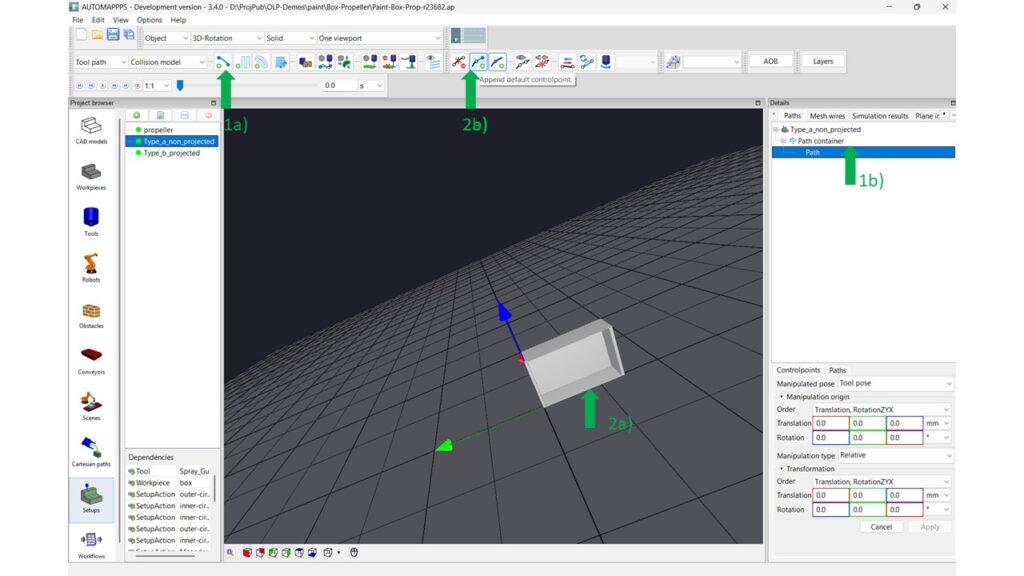
Then create the path via button (1a) or tree-view and right mouse click to start the menu (1b) as described earlier. To actually create the path, click on some point of the part (2a) or click the “Append Default Controlpoint” (2b). In the latter case, the TCP (which was selected in the path parameters) is set to the origin (0,0,0) which will be shown in the next image.
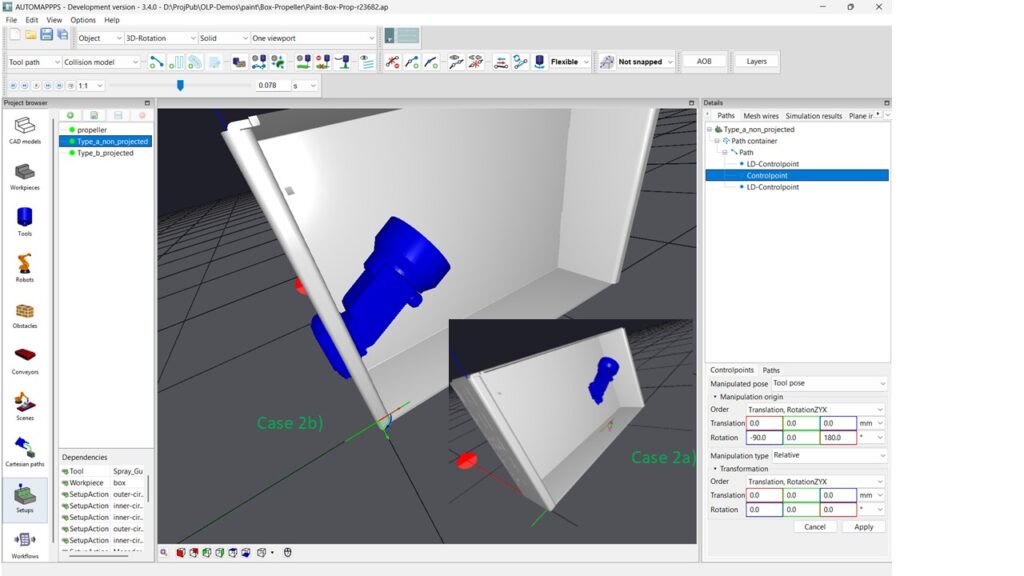
The inital start of the path. It differs for case a) and b)
Modify the start-point of the air-path #
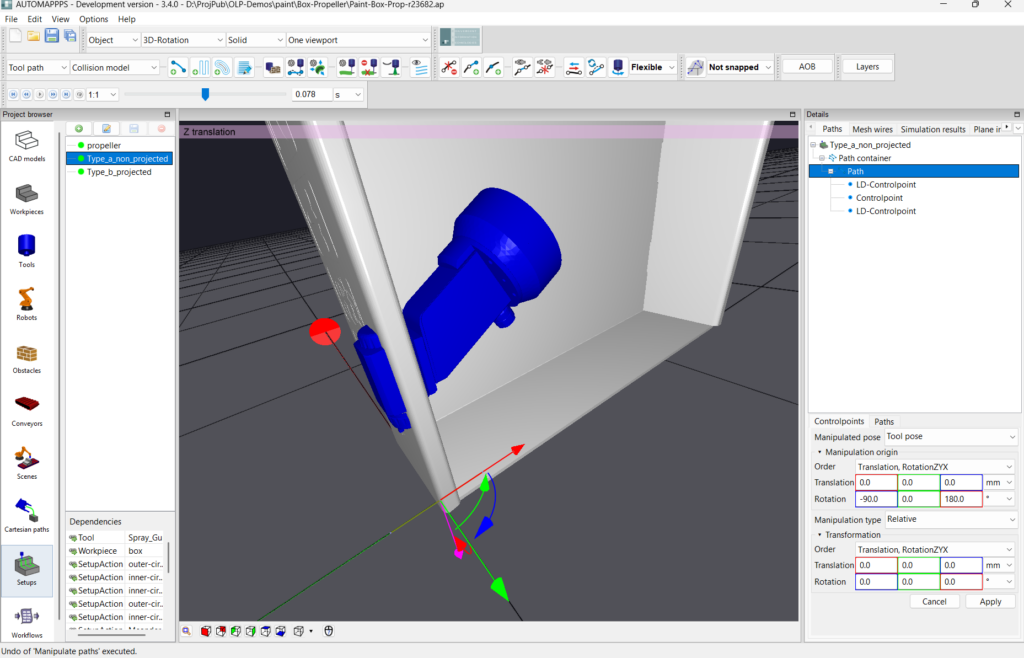
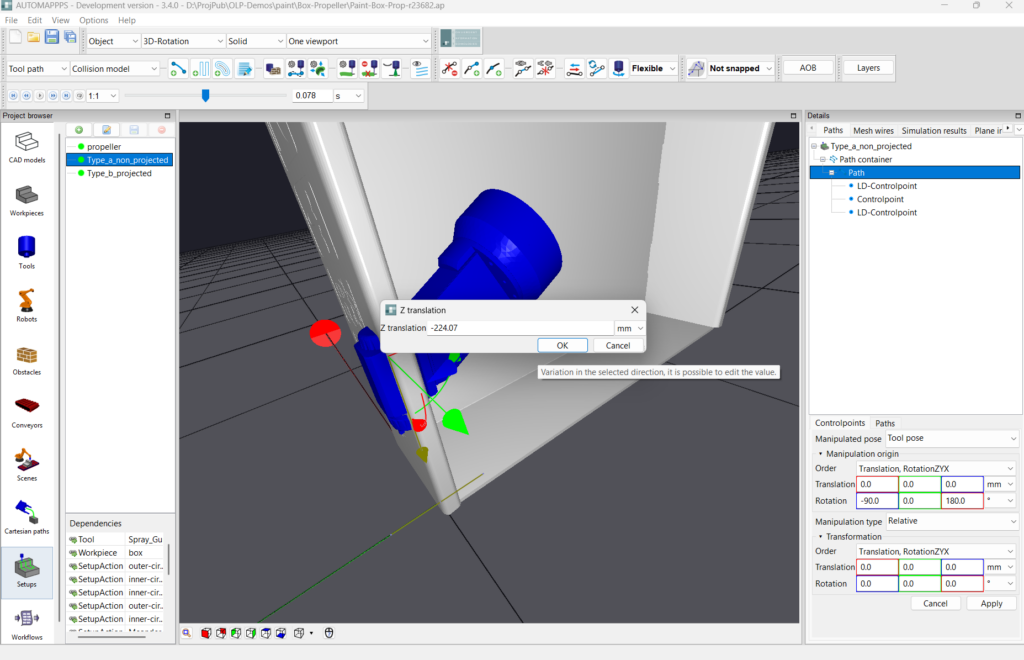
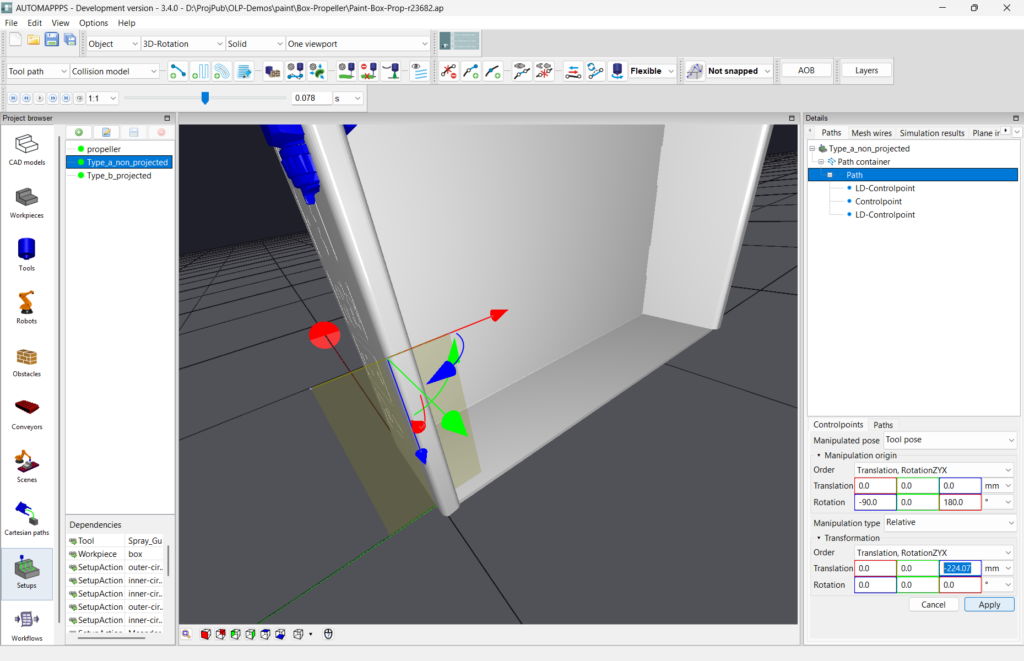
The start point can be modified as described before either by editing the coordinates directly, or be selecting the relevant (complete) path and the relevant arrow. If you use <CTRL>, the arrow and tool are moved immediately, if you use <CTRL> + <SHIFT> you can edit the value (see middle image). Do not forget to press apply.
Extend the tool path (air-path) #
The method for extending a tool path without defining the next control-point by “clicking on the part” is described next.
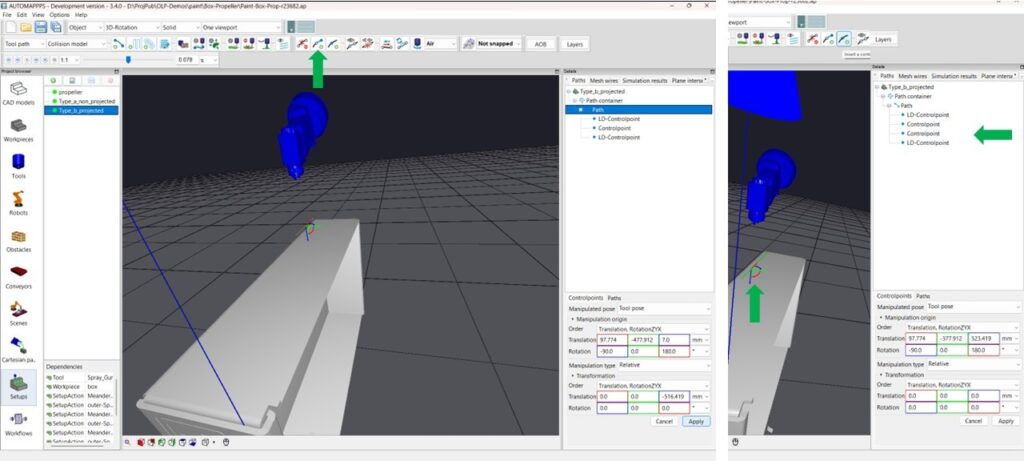
After moving the tool to the desired start point and orientation of the path (as described before) press “append control point” button (left part of above image). Confirm that a new control point is added in the path and in the tree-view (right side of above image). The inital extension of the path is 100mm. The path is elongated in regular X direction. However if there is a rotation is defined in the path parameter, this does change the direction of the path with respect to the tool orientation.
The control points can be modified and new ones added iteratively.
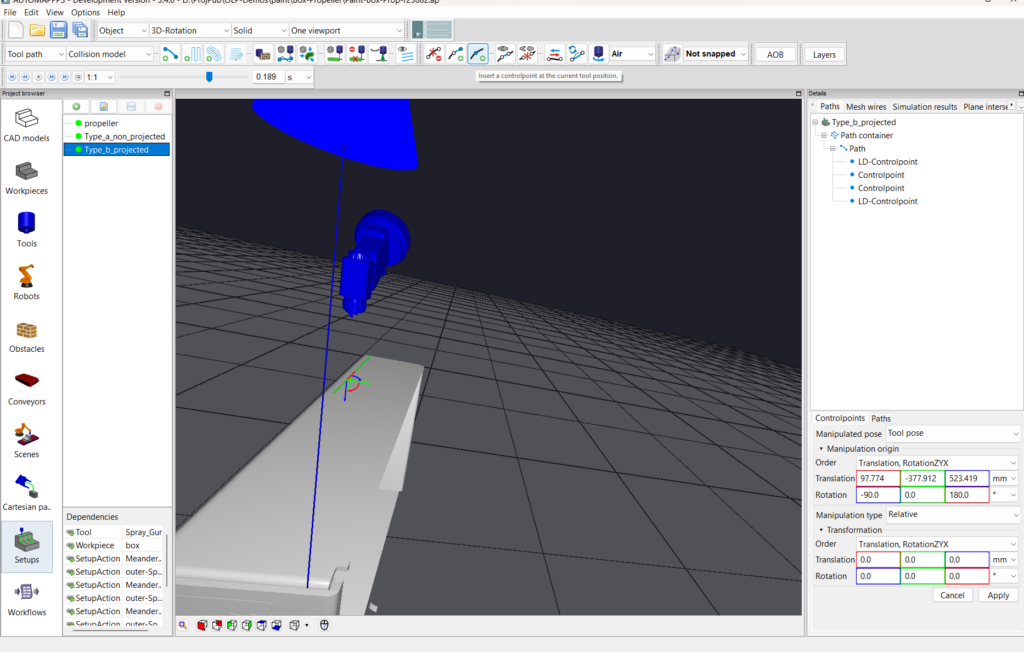
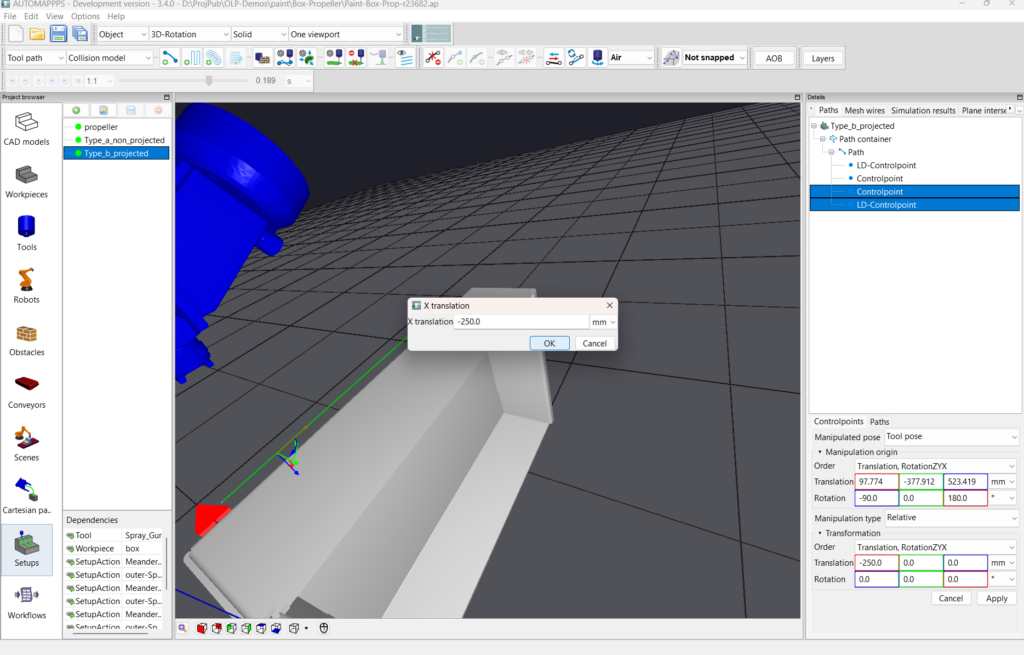
Select the control point (and the connected LD point if this one shall also be moved), click (with <CTRL>) and shift any of the arrows to move the point graphically, or edit the values of transformation and rotation directly. If you use <CTRL>+<SHIFT> you can edit the graphically changed value before confirming (see right image). Do not forgete ot press apply.
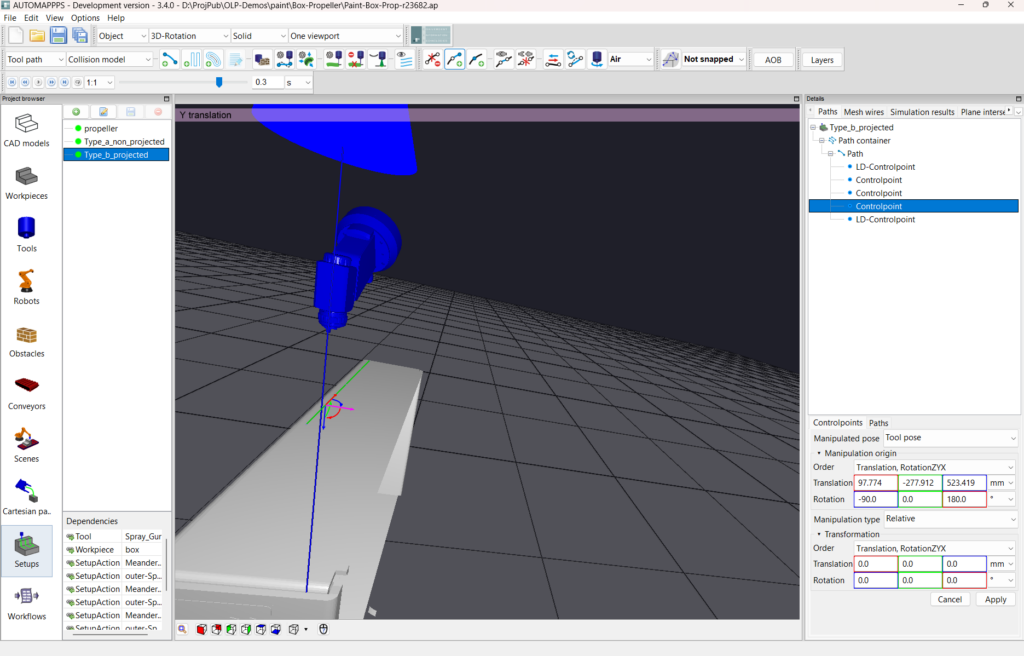
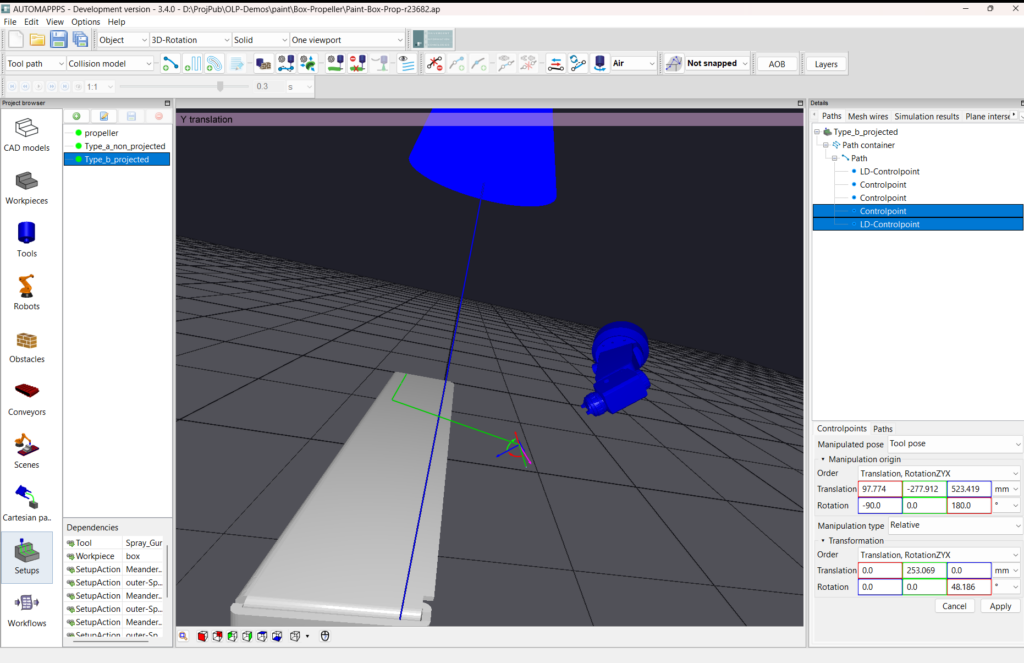
Left: select the arrow in which direction the next contol point shall be changed. Right: after moving the control-point.
Variations of the method #
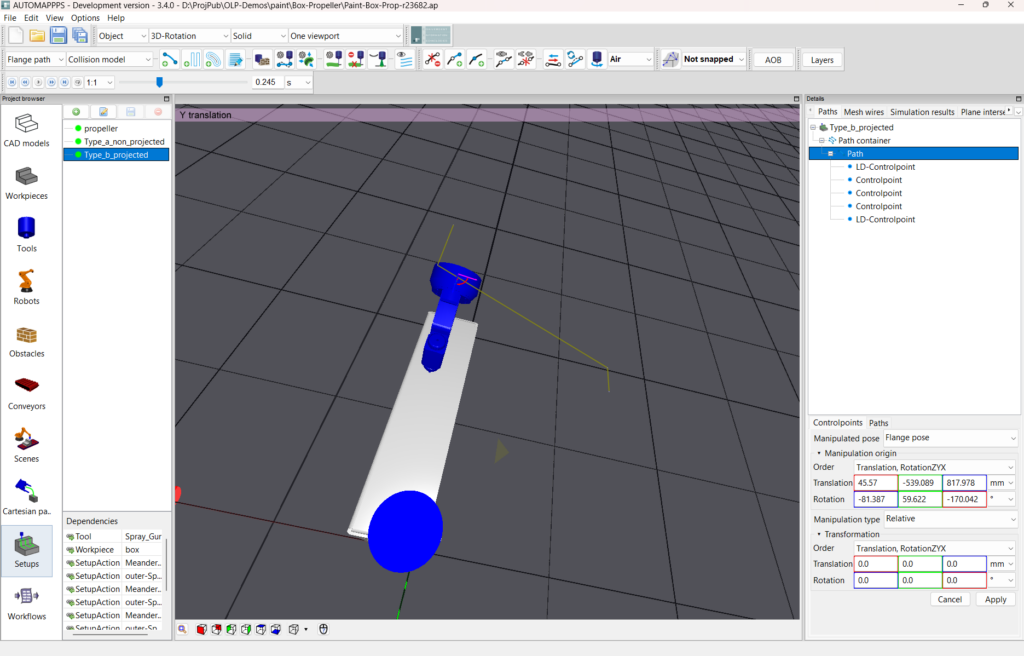
The path can equally be modified by manipulating the flange (or other TCPs) of the tool as it is with the original TCP.
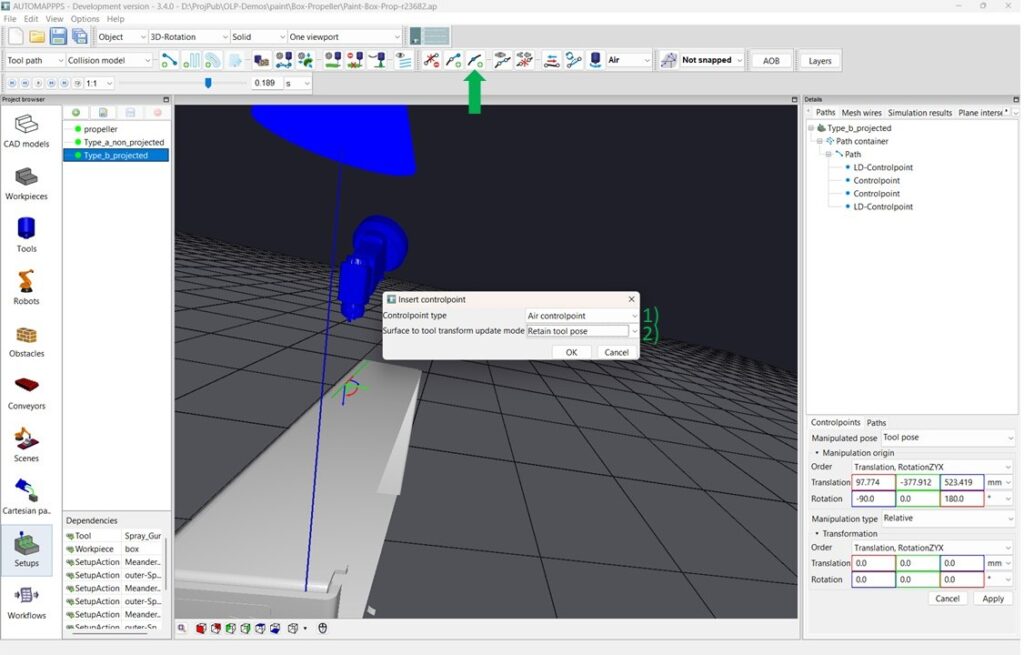
In addition to prolonging the robot tool-path by “appending a default control point” you can also add a control point in the path between two control points and modify the path afterwards. Make sure to keep the control-point type at “air control point” and “Retain tool pose” to insert the new control-point where it is. Afterwards, this point or any other can be modified.


